


What ‘Your Connection on this Site Is Not Secure’ Means
When you are receiving messages like “your connection is not private” or “your connection on this site is not secure,” it typically indicates that there’s something wrong with the SSL/TLS certificate on the website. These errors often stem from missing, expired, incorrectly configured, or otherwise invalid certificates.
Knowing the reasons and remedies can help website owners and users troubleshoot the issue. So, let’s get right to it.
Examples of Similar Messages You (and Your Site’s Visitors) May See
This error occurs when your browser isn’t able to establish an encrypted connection. Some common forms are:
- Your connection is not private (which typically stems from an expired or invalid certificate)
- Your connection to this site is not secure (which typically indicates an invalid SSL/TLS certificate)
- This site can’t provide a secure connection (this typically occurs due to misconfigured SSL settings, unsupported protocols, or cipher suites)

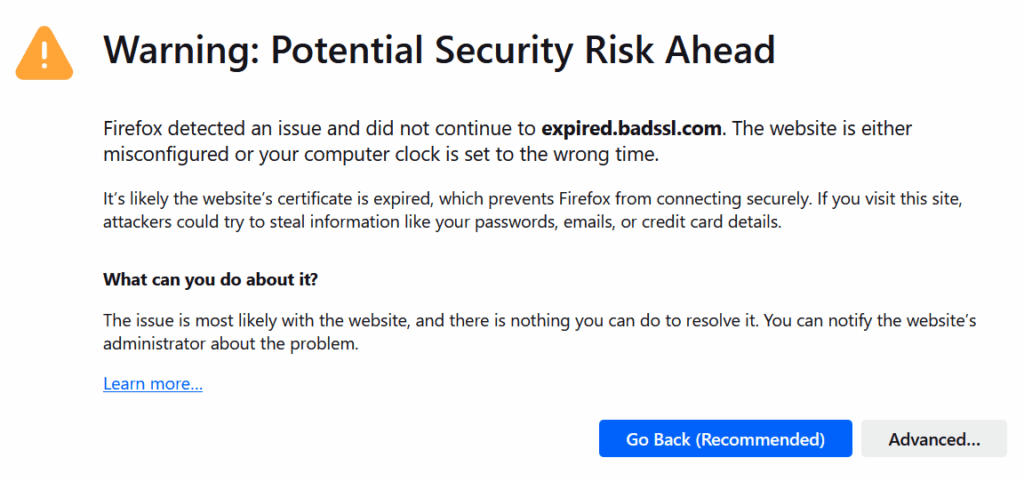
So, what can you do as a website owner or visitor to remedy this issue?
How to Resolve SSL/TLS Errors Using Manual Methods
Steps for Website Owners to Fix the Error ‘Your Connection on This Site Is Not Secure’
If your visitors are encountering browser errors like “Your connection is not private,” or “This site can’t provide a secure connection,” then follow these steps to fix the issues on your server side:
1. Check the SSL Certificate’s Expiration Date
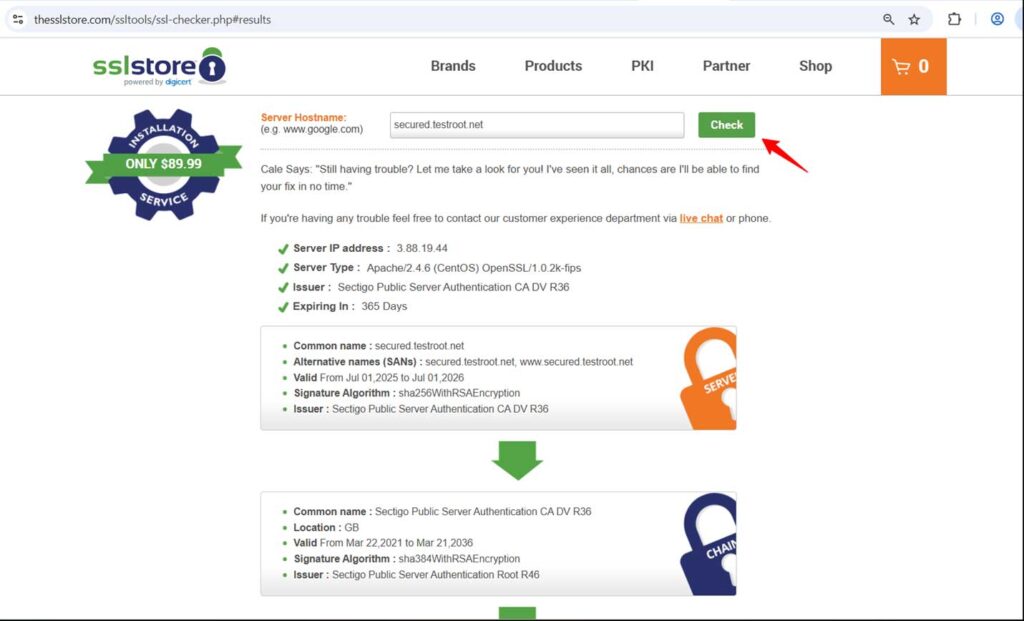
- Verify your domain’s SSL certificate using an online SSL checker tool, such as the one from TheSSLstore.com.
- Check the certificate’s validity period (in this case, its expiration date).
- If the certificate has expired, renew and deploy a new certificate to replace it in a timely manner to avoid security issues.

2. Verify the SSL Certificate’s Details Match Your Domain
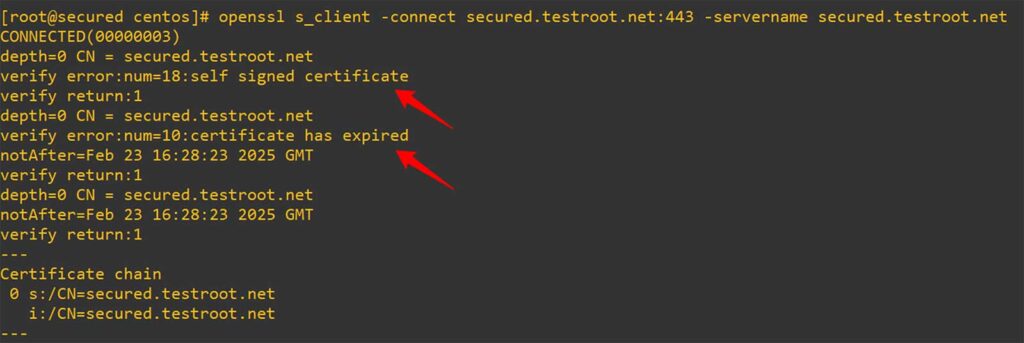
In addition to checking a certificate’s expiration date, use either a web-based SSL checker or the following terminal command to inspect other certificate details:
# openssl s_client –connect yourdomain.com:443 –servername yourdomain.comFor this example, we’ll use the test domain secured.testroot.net:
# openssl s_client -connect secured.testroot.net:443 -servername secured.testroot.net This OpenSSL command works regardless of whether the web server is Apache, NGINX, or IIS if the server supports SSL/TLS.
- Ensure that the certificate’s common name (CN) matches the domain name
- Verify the certificate is signed by a public certification authority (CA) (i.e., it isn’t self signed).
3. Troubleshoot SSL/TLS Configuration Issues
Ensure your web server uses strong encryption:
- Set up your web server to use secure encryption protocols (TLS 1.2 or TLS 1.3).
- Disable older SSL versions (SSL 2.0, SSL 3.0, TLS 1.0, and TLS 1.1).
- Ensure that the appropriate cipher suites are enabled to avoid compatibility issues.
Refer to your server’s SSL configuration file:
- Apache: The config file can be found at /etc/httpd/conf.d/ssl.conf (CentOS/RHEL)
- NGINX: You can locate this file at /etc/nginx/sites-available/default (Ubuntu/Debian)
- IIS: Use registry settings or IIS Crypto.

4. Verify Correct SSL Installation
Use The SSL Store’s SSL Checker to verify:
- your SSL certificate is correctly installed, and
- all intermediate certificates are in place.
Steps for Website Visitors to Fix the Error ‘Your Connection on This Site Is Not Secure’
If you’re a user who is encountering errors like “This Site Can’t Provide a Secure Connection” or “Your connection is not private,” try the following steps:
- Clear browser cache and cookies.
- Update your browser to the latest version.
- Check your system date and time settings.
- Attempt to access the site in incognito mode.
- Switch to a different network or reset your router.
Some sites recommend modifying your firewall or antivirus software settings if it blocks SSL connections. Don’t do this! This approach leaves your system vulnerable to malware and other cyber threats.
Instead, if you continue to see any of these error messages on a website, inform the site’s admin about it so they can deal with it on their end.
Watch a tutorial on how to fix the “Your connection on this site is not secure” error:
CertPanel Automates Fixing Many SSL Certificate Issues
CertPanel is a comprehensive SSL/TLS management platform that helps website owners detect, track, and automatically fix SSL/TLS certificate- and protocol-related issues. From addressing expired certificates and missing intermediate chain certificates to mitigating the use of outdated security protocols, CertPanel has a solution for everything in one package to make your site secure quickly and easily.
Using the following CertPanel features, you can automate most of your SSL/TLS management and security-related tasks:
- SSL Monitor: This tool scans and monitors your site for 110+ SSL/TLS-related issues, including certificate expirations, missing certificates, outdated protocols and algorithms, and misconfigurations.
- AutoInstall SSL: This feature enables you to automate the SSL/TLS certificate installation and renewal process on Apache, NGINX, and Windows IIS servers.
- Vulnerability Manager: This scanner tool guide users through detection and auto-remediation of 190,000+ misconfigurations and security vulnerability issues across your server environments.
Final Thoughts to Wrap This Up
While it’s possible to repair SSL/TLS manually, CertPanel’s features make it easy by using automation to make your site secure without many common downtime risks. Monitoring your SSL/TLS certificates regularly and renewing them proactively is key to keeping users securely connected.